Dear customer,
Thank you for choosing Theme Nebula for your Moodle. Nebula is a Bootstrap4 based theme with a sharp design and it offers various style and layout options. I hope that you will be satisfied with it.
About this Documentation
This documentation should help you get started. It covers everything you need to know to get the theme up and running. Please read this documentation thoroughly, if you still experience any difficulties please get in touch with me at my support center: Support for Nebula – Responsive Moodle Theme
Nebula 4.0.X theme works only with Moodle 4 and later.
- Processor: 1GHz (min), 2GHz dual core or more recommended.
- Memory: 512MB (min), 1GB or more is recommended. 8GB plus is likely on a large production server.
- Consider separate servers for the web “front ends” and the database. It is much easier to “tune”.
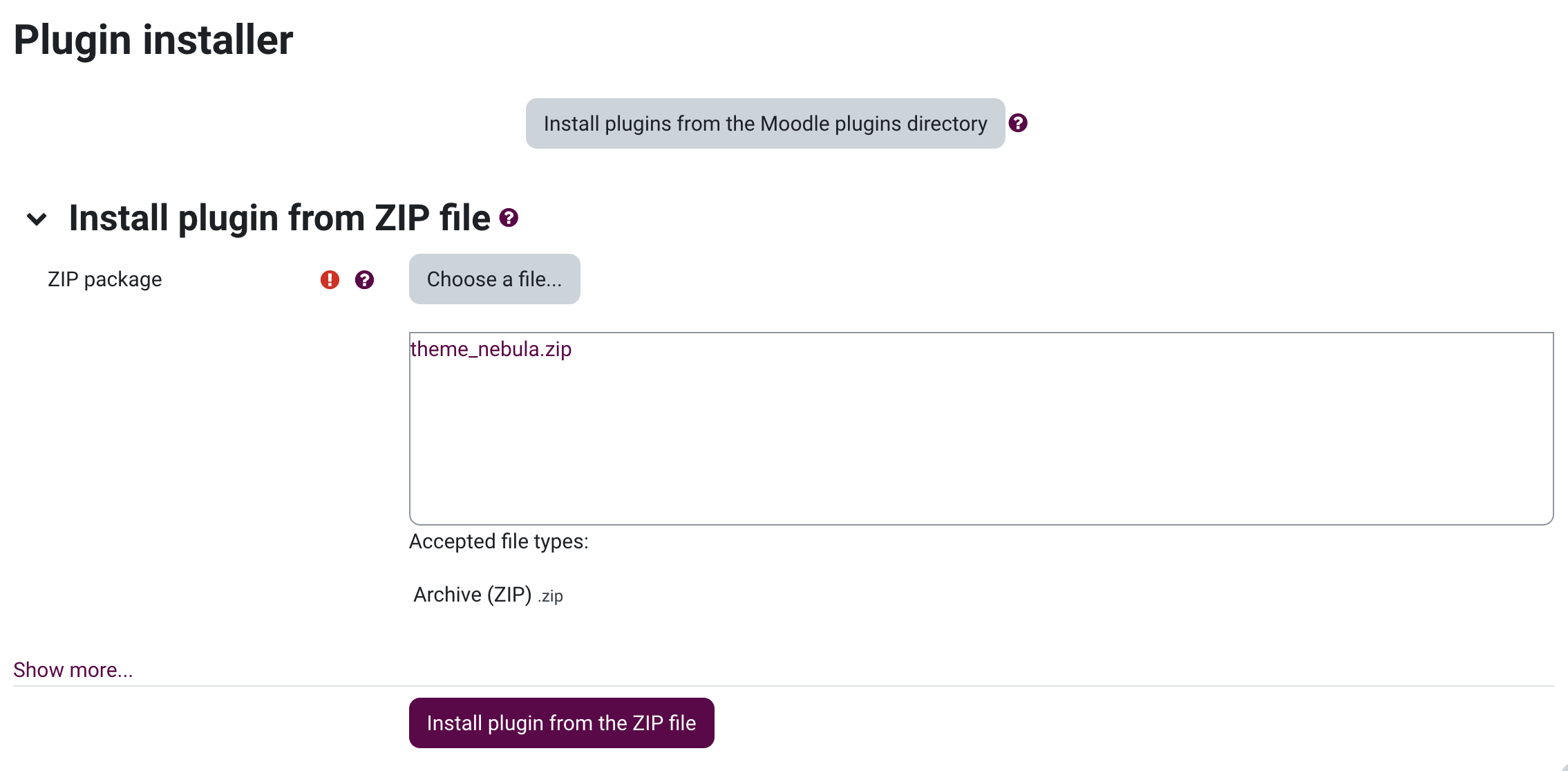
Via the Moodle build-in Plugin installer
- Login to your Moodle site as an admin.
- Go to Administration > Site administration > Plugins > Install plugins.
- Upload theme_nebula.zip file
- Check that you obtain a ‘Validation passed!’ message, then click the button ‘Install plugin’.
Via FTP
- Log into your Moodle site via FTP client and go to Moodle theme directory located at your-Moodle-site/themes/.
- Unzip the theme file you downloaded and upload only the extracted theme folder (Nebula.zip).
- Ensure that the new theme folder and its contents are readable by the webserver.
- Now login to your Moodle site and go to Administration → Site administration → Notification, you will see a Notification for theme to be installed. Click “Upgrade Moodle Database now” button to continue for the installation procedure.
Go to: Dashboard → Site administration → Development → Purge all cache
Logo
You can upload your custom logo here. If you upload a logo it will appear in the header. By default, the dimension of your logo is set to a maximum height of 250px. But you can also choose to display your logo at any other height.
Logo Uploader:
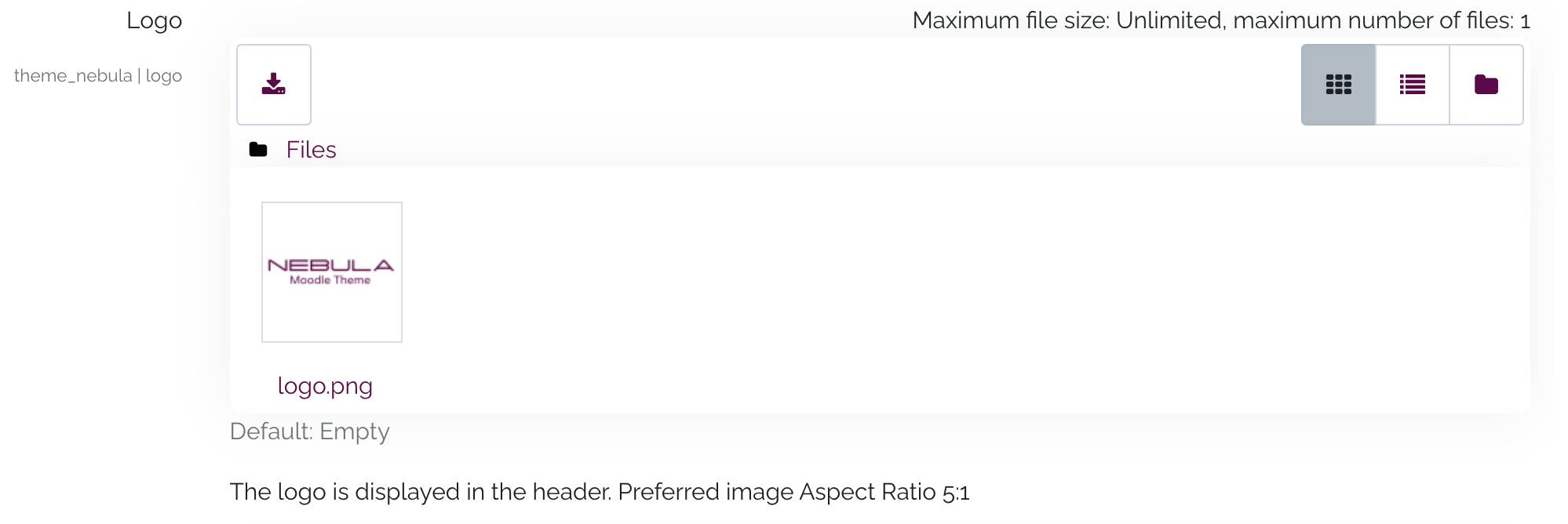
Result:

Favicon
You can upload your custom favicon here.
Favicon Uploader:
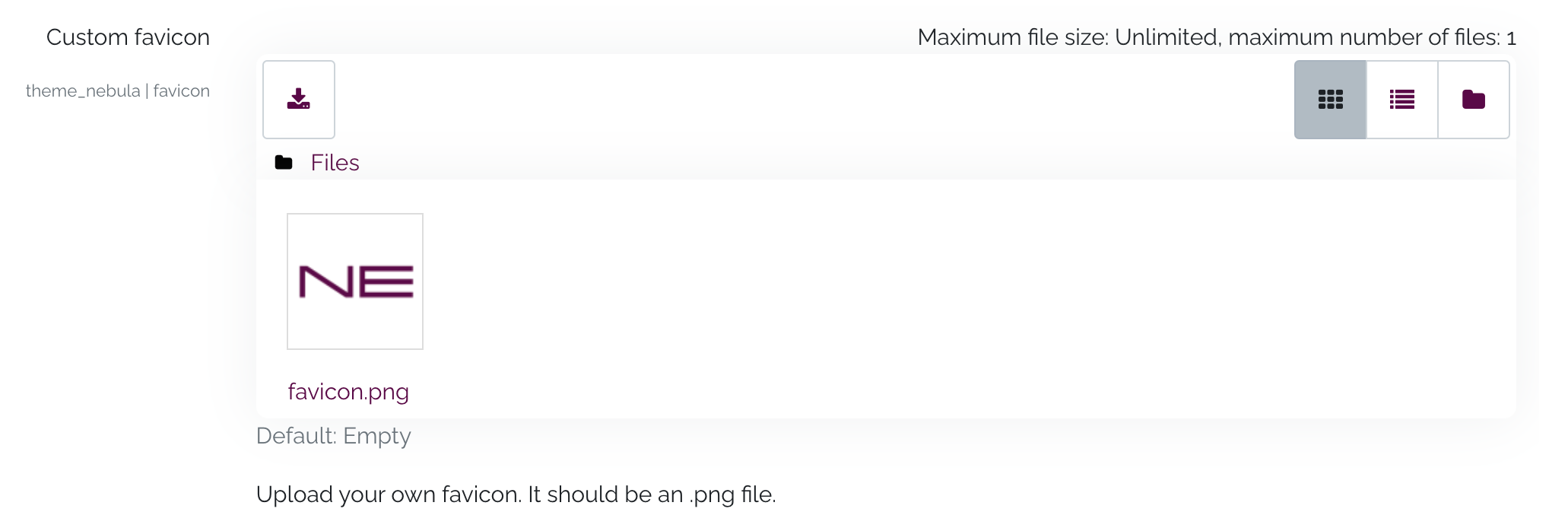
Result:

Color
You can choose brand & secondary menu color here.
Color Picker:
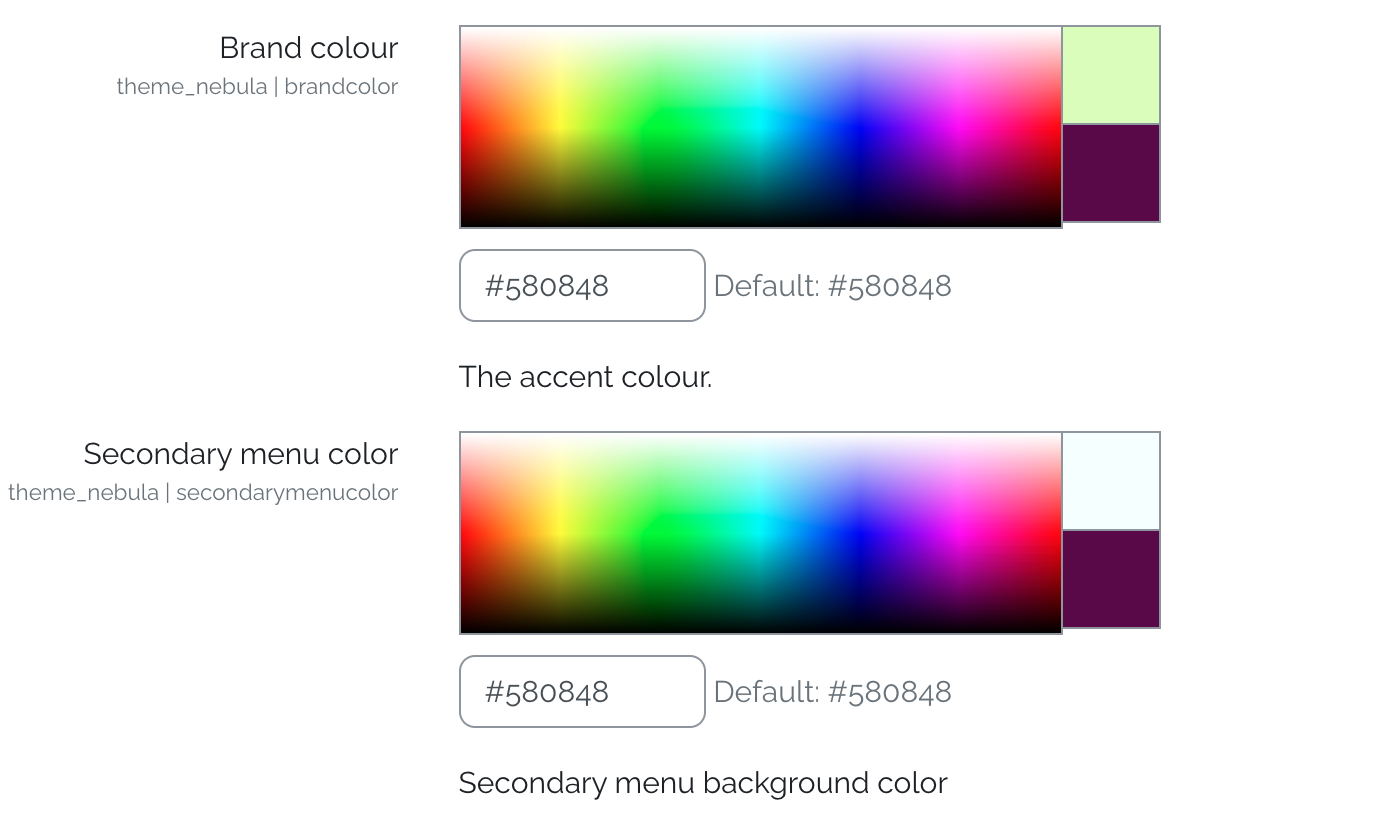
Result:
Branding your site with your own color.
Font
You can choose font style here.
Color Picker:

Result:
Branding your site with your own favrite font.
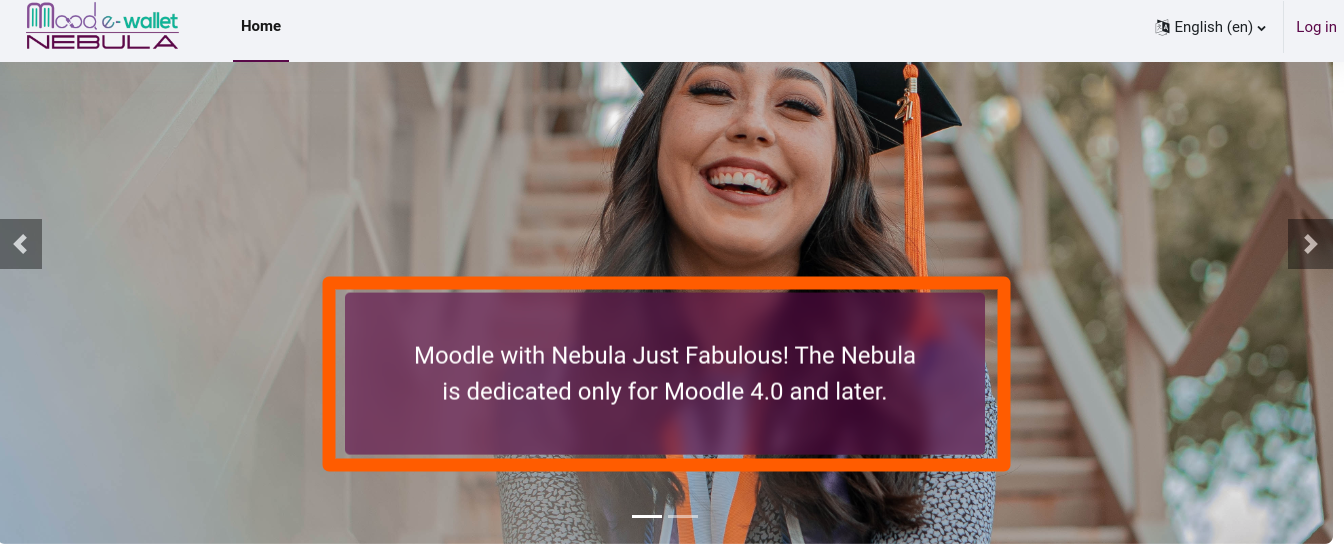
Here you can upload frontpage slider image .
Go to: Site administration → Appearance → Themes → Select Nebula theme → Frontpage.
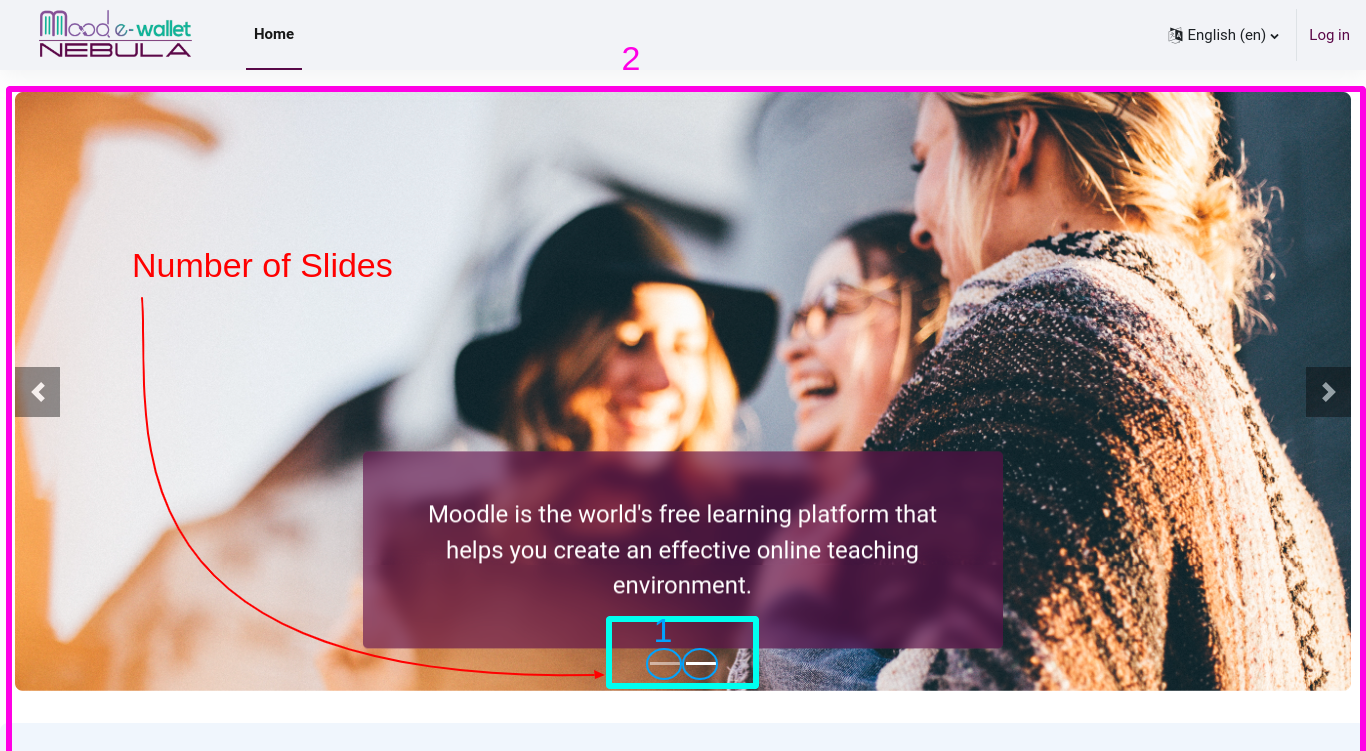
No.of Slider & Select Slider Image
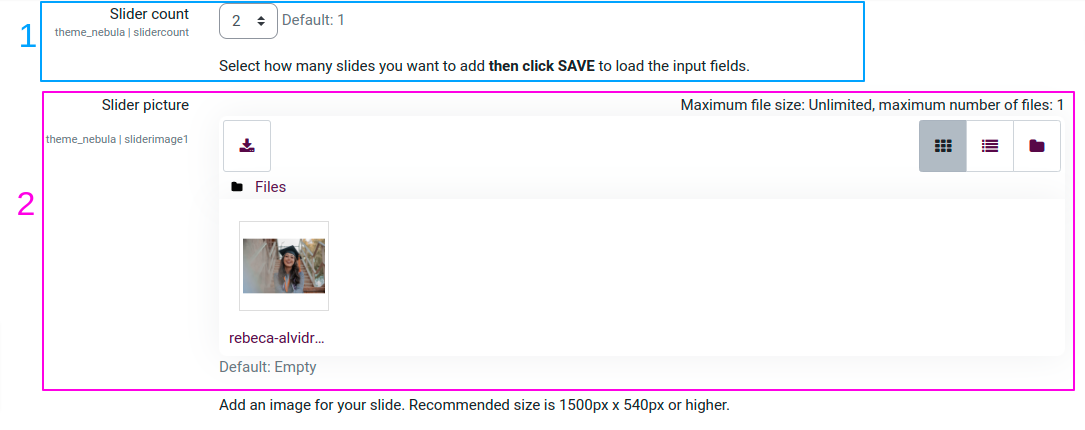
Result:
Slider Text
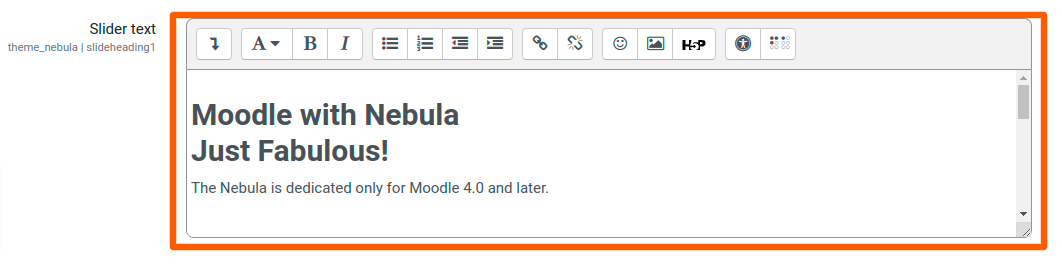
Result:
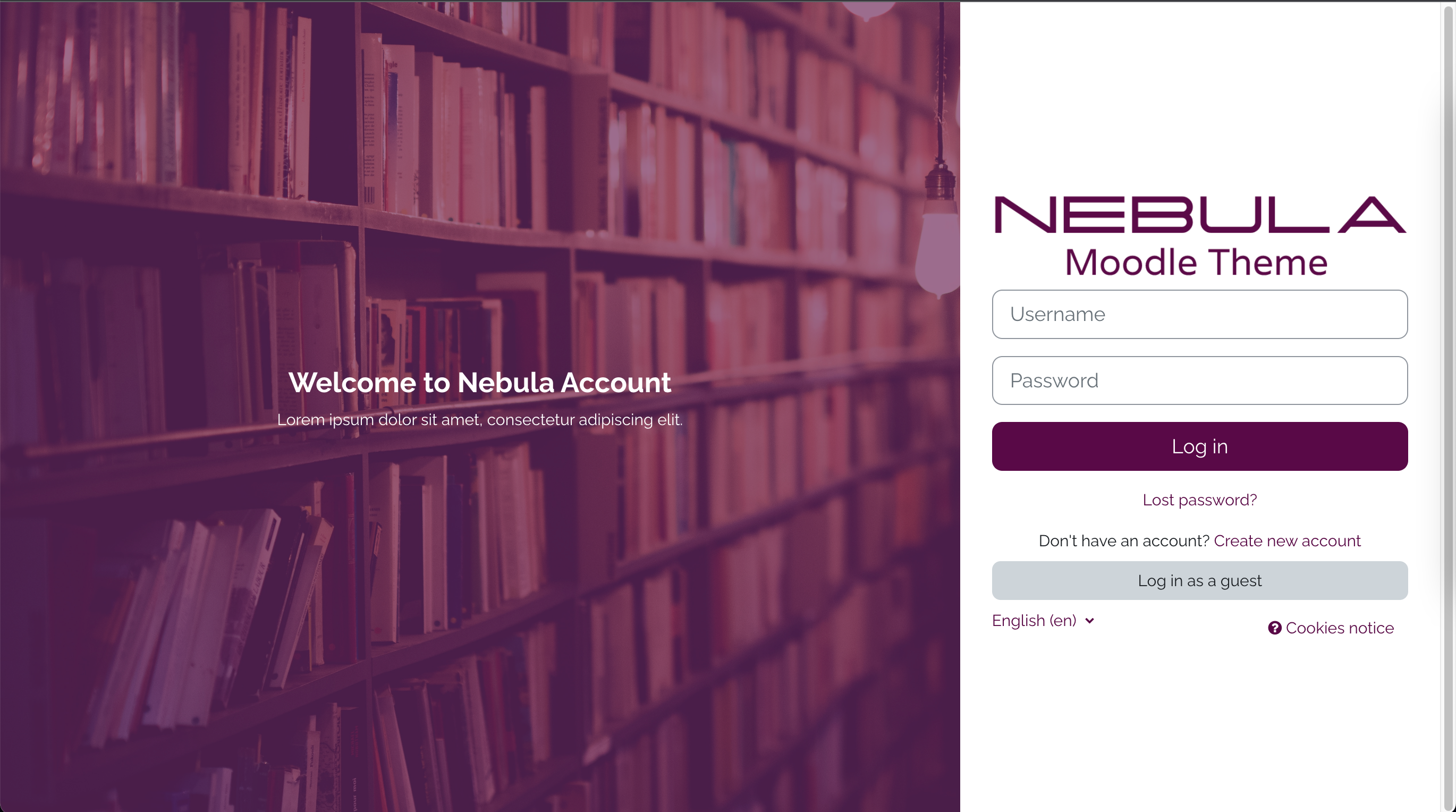
Where to customize?
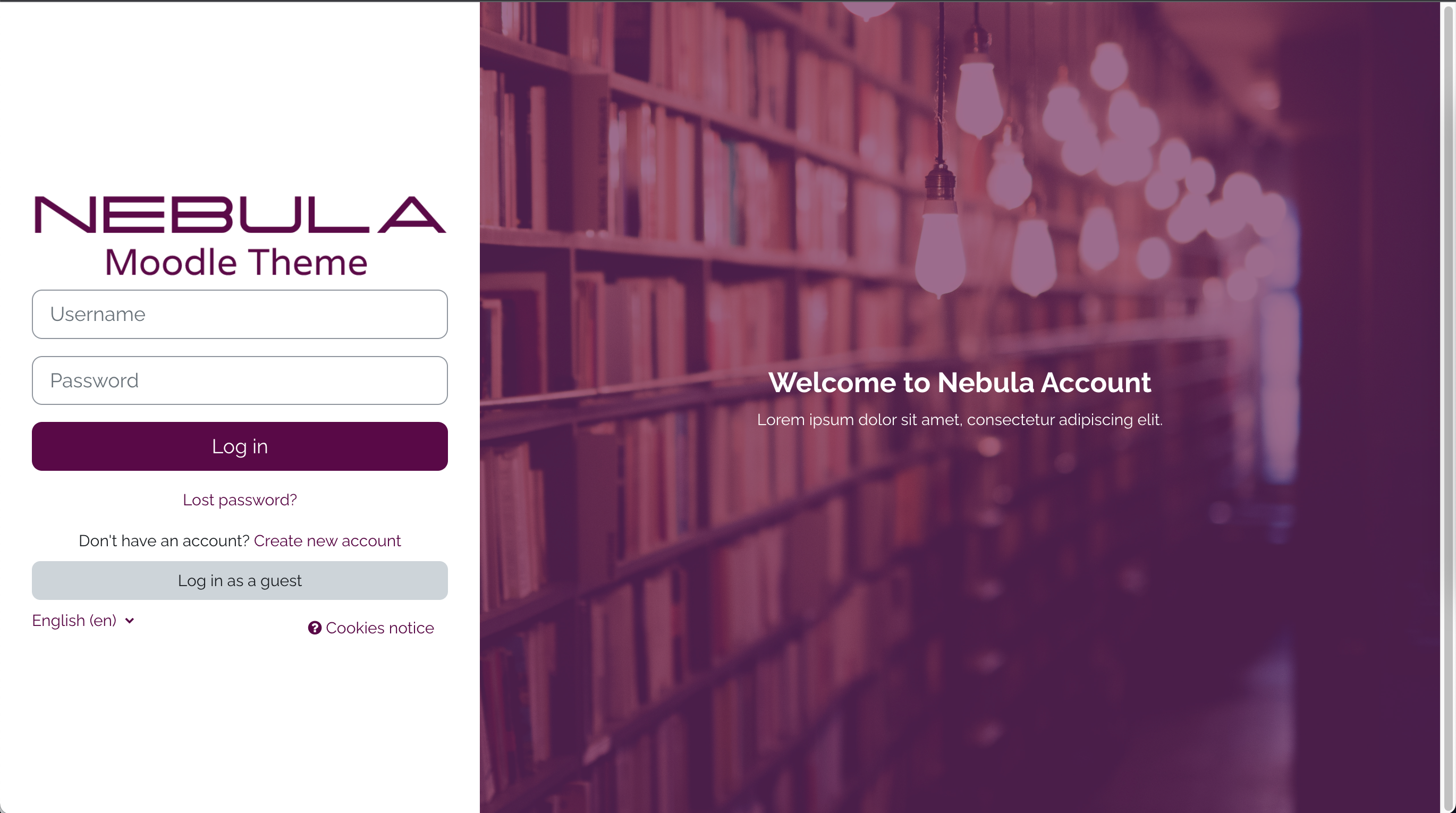
Go to: Site administration -> Appearance -> Nebula -> Login
Layout #1
Layout #2
Footer
You can put here, your company information, Company contacts, Company social media handle, etc.
Go to: Site administration → Appearance → Themes → Select Nebula theme → Footer.
Contact Us
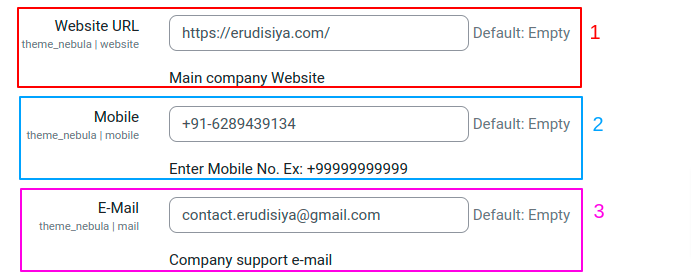
Result:
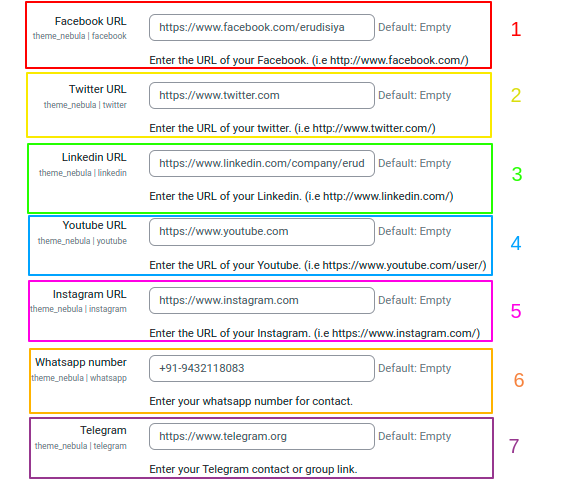
Follow Us
Result:

Follow Us

Result: